
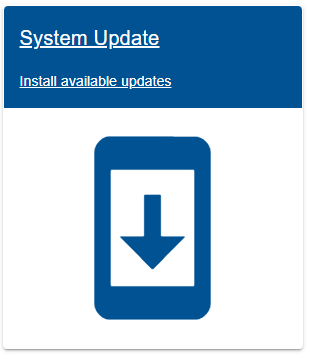
First access the System Update page on eHub
1. Automatic download
The software update will automatically be downloaded on a range with internet connection (WAN port on eHub)
- Click Start upgrade to install the updates.
- After the update is finished the eHub will usually reboot NOTE: Do not turn of eHub during reboot, the boot can take 5-20 minutes to finish depending on the updates.
2. Manual download
Ranges with no internet access can download files from internet and bring the files to the range and do manual upgrade.
Poor internet connection
If you choose to manually upload packages due to poor internet connection at your range, please disconnect you range from internet while uploading the packages and performing the upgrade. Re-connect when finished.
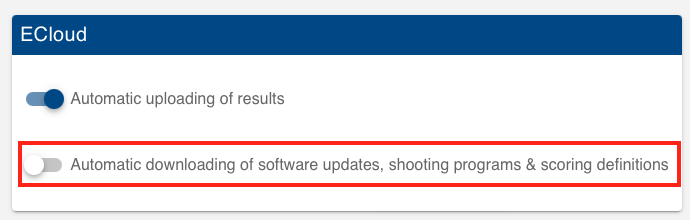
As from version 2024.1.0 it is possible to disable automatic download.
Settings → Cloud → eCloud
- Download all the upgrade files:
- In the System Update page on eHub, select Upload and select first file. Repeat this for all files. NOTE: Important to upload all files before starting the upgrade!
- Click Start upgrade
- Please wait at least a minute before you continue to click re-start button.
- After the update is finished the eHub will usually reboot NOTE: Do not turn of eHub during reboot, the boot can take 5-20 minutes to finish depending on the updates.
Getac monitor upgrade
If you have the Getac monitors in your system, you will need to manually upgrade these when installing this release.
Detailed upgrade description can be found below:
Manual Update Instructions for Windows tablets
Update for Windows tablets (Windows / Getac)
This guide describes how to manually apply an update to tablets (Getac or other tablets running Windows) using a USB drive.
🔎 Why This Update Is Required
When upgrading from a version earlier than 1.21.0 to version 1.21.0 or newer, a one-time manual operation is required.
This is due to the expiration and replacement of our previous code signing certificate. The change affects how Windows validates the app and temporarily breaks the automatic update mechanism (trough the eHub) on Windows-based tablets.
Once this manual step has been completed, automatic updates will resume working as normal going forward.
🔄 What the Update Does
- Uninstalls any previously installed version of the application
- Installs the new bundled application version
- Installs the required root certificate for offline validation
- Updates references to the new App ID
- Fixes shortcuts and startup scripts to reflect the new app identity
🔧 What You Need
- Dowload files here (Please contact W5 for password)
- USB stick with update files (extract to the root folder of USB stick)
- Powered-on tablet (eScore-eMonitor can be running)
📘 Step-by-Step Instructions
-
Insert USB stick
Plug in the USB drive to the tablet. File Explorer should open automatically. -
Run the script
Double-click LaunchCertificateAndAppIDFix.bat from the USB drive. -
Allow administrator access
A prompt will appear:
“Do you want this app to make changes to your device?”
Click Yes to proceed. -
Script executes modifications
The script will:
• Install the required root certificate
• Update app identifiers
• Fix shortcuts and startup scripts -
Complete the process
When prompted, you can either:
• Press Y and enter to reboot
• Or close the window to exit without reboot, or Press N and enter
Tip: To bring up the on-screen keyboard, double-tap near the prompt text. -
Device reboots automatically
After reboot, remove the USB stick. The monitor is now updated. - Please note that you need to re-registrer the monitors in settings→ “configure connected units”.
⚠️ Important
If any error occurs during the process:
• An error message will appear
• An alarm sound will play (if audio is enabled)
If you encounter an error message indicating missing dependencies, this can be resolved by running a dedicated installation script.
On the USB stick, you will find a folder named /utils. Inside, there is a file: eMonitorInstallWithDependencies.bat
This script will install any required dependencies and ensure the application runs as expected.
Run this script the same way as the other one (double-click and allow administrator access), and then follow the on-screen instructions.
4. Shooting programs and Target Scoring Definitions
Official shooting programs and target scoring definitions are automatically downloaded when connected to eCloud.
Release log
Features
- Integration with Orion Scoring System
A new integration with Orion Scoring System (by Scopos) is available. The integration allows an eScore system to synchronize squadding lists and results with a match created in Orion. Read more here. - Support for inserting shots with a specific value
In addition to insertion of a miss in a series it is now possible to insert shots with a specific value. Available values are fetched from the target scoring definition. - Support manual advance of rubber feeder
To test the rubber feeder on targets with this feature, a test function has been implemented. From eStatus it is possible to advance the rubber 10mm or 30mm. The command can be sent to all targets or a single specific target. - Alive status for extension board
Some target models (H4D, H2E, ... ) has an extension board connected. This is for example used to control the rubber feeder. This connection is now monitored with a heart beat message and error will be reported if the extension board is no longer responding. - Major improvements to the Software upgrade functionality
The software upgrade process has been redesigned to use bundled releases instead of individual package updates. Each release now contains all required packages, ensuring complete and consistent installations. This change also simplifies version tracking, as every release is assigned a unique version number (e.g. 2025.4.0) and includes its own release notes. - Move shots command also works from extra sighter series
- OpticScore detection unit status in eStatus
If the connection with the optical detection unit on OpticScore targets is not operational, an error will be reported - Show graphical target in eControl
In the detail view for a single target in eControl, the graphical target view is now available in addition to the shot list - Command for setting team shooting mode for all targets
During a CMP team shooting competition, in the action menu (top right in the eControl view during a competition), there is now a command for changing the team shooting mode for all targets simultaneously. - Custom naming of network devices
In the settings menu, under 'configure connected units', there is now support for setting a custom name for antennas. This custom name will show up in eStatus, making it easier to identify the right antenna (e.g. distinguishing a 200 m antenna from a 100 m antenna). - Statistics view in eControl target details
In the details view for a single target in eControl, a new statistics tab is added, including 'Mid point (MPI)', 'Center to center (C-C)', 'Minimum bounding rectangle (MBR)', and 'Minimum bounding circle (MBC) - Added competition name and date to score card printouts
- Added option to adjust time zone (and time/date if no connection to eCloud)
This is found on the settings page, under User preferences -> System settings.
Fixes
- Make sure shots are not deleted if a new relay is loaded before the series was approved
- Various fixes and improvements