
First access the System Update page on eHub
1. Automatic download
The software update will automatically be downloaded on a range with internet connection (WAN port on eHub)
- Click Start upgrade to install the updates.
- After the update is finished the eHub will usually reboot NOTE: Do not turn of eHub during reboot, the boot can take 5-20 minutes to finish depending on the updates.
2. Manual download
Ranges with no internet access can download files from internet and bring the files to the range and do manual upgrade.
Poor internet connection
If you choose to manually upload packages due to poor internet connection at your range, please disconnect you range from internet while uploading the packages and performing the upgrade. Re-connect when finished.
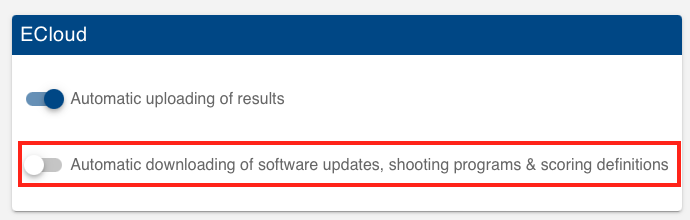
As from version 2024.1.0 it is possible to disable automatic download.
Settings → Cloud → eCloud
- Download all the upgrade files:
- In the System Update page on eHub, select Upload and select first file. Repeat this for all files. NOTE: Important to upload all files before starting the upgrade!
- Click Start upgrade
- Please wait at least a minute before you continue to click re-start button.
- After the update is finished the eHub will usually reboot NOTE: Do not turn of eHub during reboot, the boot can take 5-20 minutes to finish depending on the updates.
Getac monitor upgrade
If you have the Getac monitors in your system, you will need to manually upgrade these when installing this release.
Detailed upgrade description can be found below:
Updating Windows monitors (Rugged Monitor and other Windows tablets)
This guide explains how to manually update Rugged Monitors and other Windows tablets using a USB flash drive.
🔎 Why a manual update is required
When upgrading from a version earlier than 1.21.0 to version 1.21.0 or later, you need to perform a manual update once.
The previous code-signing certificate has expired and been replaced. This affects how Windows verifies the app and temporarily prevents automatic updates via eHub on Windows tablets.
After this manual update, automatic updates work normally again.
🔄 What the update does
- Uninstalls the previous version of the app
- Installs the new app version included in the update package
- Installs the root certificate needed to verify the app without an internet connection
- Updates references to the new app ID
- Updates shortcuts and startup scripts to point to the new app
🔧 What you need
- Download the update files (Contact W5 for the password)
- A USB flash drive containing the update files. Extract the files directly into the root folder of the drive.
- A monitor that is switched on. eScore-eMonitor can remain open.
📘 Updating the monitor
-
Insert the USB flash drive
Connect the drive to the monitor. File Explorer should open automatically. -
Run the update script
Double-clickLaunchCertificateAndAppIDFix.baton the USB drive. -
Allow changes to the device
Windows asks whether you want to allow the app to make changes to the device.
Select Yes to continue. -
The script performs the update
The script:
• Installs the required root certificate
• Updates the app IDs
• Corrects shortcuts and startup scripts -
Complete the update
When prompted to restart, you can:
• Press Y and then Enter to restart the monitor.
• Press N and then Enter, or close the window, to exit without restarting.
Tip: Double-tap near the prompt text to open the on-screen keyboard. -
After restarting
Remove the USB drive once the monitor has restarted. The monitor is now updated. - Register the monitors again under Settings → Connected device setup.
⚠️ Important
If an error occurs during the update:
• An error message.
• An alarm sounds if sound is enabled.
If the error message indicates that required software components are missing, you can install them using a separate script.
Open the /utils folder on the USB drive. It contains the file eMonitorInstallWithDependencies.bat.
The script installs the components the app needs to work.
Run this script in the same way as the update script: double-click the file, allow changes to the device and follow the on-screen instructions.
4. Shooting programs and Target Scoring Definitions
Official shooting programs and target scoring definitions are automatically downloaded when connected to eCloud.
Release log
Features
- Integration with Orion Scoring System
A new integration with Orion Scoring System (by Scopos) is available. The integration allows an eScore system to synchronize squadding lists and results with a match created in Orion. - Support for inserting shots with a specific value
In addition to insertion of a miss in a series it is now possible to insert shots with a specific value. Available values are fetched from the target scoring definition. - Support manual advance of rubber feeder
To test the rubber feeder on targets with this feature, a test function has been implemented. From eStatus it is possible to advance the rubber 10mm or 30mm. The command can be sent to all targets or a single specific target. - Alive status for extension board
Some target models (H4D, H2E, ... ) has an extension board connected. This is for example used to control the rubber feeder. This connection is now monitored with a heart beat message and error will be reported if the extension board is no longer responding. - Major improvements to the Software upgrade functionality
The software upgrade process has been redesigned to use bundled releases instead of individual package updates. Each release now contains all required packages, ensuring complete and consistent installations. This change also simplifies version tracking, as every release is assigned a unique version number (e.g. 2025.4.0) and includes its own release notes. - Move shots command also works from extra sighter series
- OpticScore detection unit status in eStatus
If the connection with the optical detection unit on OpticScore targets is not operational, an error will be reported - Show graphical target in eControl
In the detail view for a single target in eControl, the graphical target view is now available in addition to the shot list - Command for setting team shooting mode for all targets
During a CMP team shooting competition, in the action menu (top right in the eControl view during a competition), there is now a command for changing the team shooting mode for all targets simultaneously. - Custom naming of network devices
In the settings menu, under 'configure connected units', there is now support for setting a custom name for antennas. This custom name will show up in eStatus, making it easier to identify the right antenna (e.g. distinguishing a 200 m antenna from a 100 m antenna). - Statistics view in eControl target details
In the details view for a single target in eControl, a new statistics tab is added, including 'Mid point (MPI)', 'Center to center (C-C)', 'Minimum bounding rectangle (MBR)', and 'Minimum bounding circle (MBC) - Added competition name and date to score card printouts
- Added option to adjust time zone (and time/date if no connection to eCloud)
This is found on the settings page, under User preferences -> System settings.
Fixes
- Make sure shots are not deleted if a new relay is loaded before the series was approved
- Various fixes and improvements